YOUR WATCH RUNS PRECISELY. MICROREG IS YOUR INSURANCE.

You never have to adjust it. But if you ever want to,
you can, yourself, effortlessly.

START WITH THE HORAGE APP

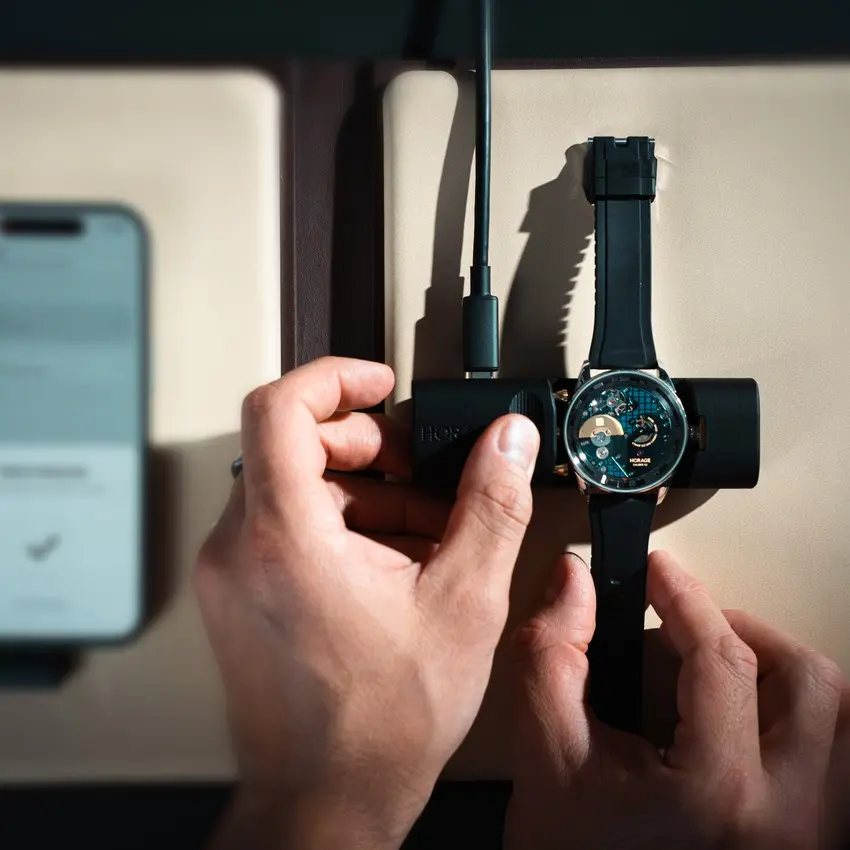
Revolution 3 MicroReg in the adjustment device, phone with the HORAGE app and USB-C cable

WHAT YOU NEED

  • Your Revolution 3 MicroReg watch
  • The MicroReg adjustment device
  • A smartphone with the HORAGE app and a USB-C cable*
  • Access to the email address you used for your purchase

*if your iPhone has a Lightning port please contact us for more information.

The full user manual is at the bottom of this page.

SET UP

HORAGE app My Product screen next to the Revolution 3 MicroReg in the adjustment device

1. SIGN IN

Sign in to the HORAGE app with the email address* you used to buy the watch. You will be sent an email to this email address with a code, please enter this is the app to progress. You will then be able to see your Revolution 3 MicroReg, which will appear under My Product. Please check that the serial numbers (case and movement) match the numbers on your case and movement.

*if you cannot remember, or have lost access to, this email please contact us.

Fingers at the crown of the Revolution 3 MicroReg

2. WIND THE WATCH

With the crown pushed in (position 0), turn it clockwise 40 to 50 times. You cannot overwind it. Once it is on your wrist, the micro-rotor keeps it wound.

Crown pulled out from position 0 to position 1 to set the time

3. SET THE TIME

Use the time display on the rear of the watch to accurately set the time. When the seconds hand reaches zero, pull the crown out to position 1, stopping the seconds hand. You can now set the hour and minutes hands against a known reference time. Once set, push the crown back to position 0 and the watch will start running.

TRACK

Saving the first reading as a NEW RUN in the HORAGE app

4. FIRST READING

Open the app, and select your watch. Select and tap Track. Pick a specific time to record (you can use the +5 sec or -5 sec buttons to adjust the pre-selcted time). When you watch displays the shown time in the app, tap CAPTURE, When prompted save the reading as a NEW RUN.

Saving a daily reading to the CURRENT RUN in the HORAGE app

5. TRACK EVERY DAY

Wear the watch normally as you go about your daily routine. Once a day, at roughly the same time, use the Track function to record the time and, when prompted, save it to the CURRENT RUN. After 10 days the app will have enough data to allow it to make Suggested adjutments based on the averaged number of seconds per day your watch gains or loses.

ADJUST

Firmware update screen in the HORAGE app, adjustment device connected by USB-C

6. CONNECT THE DEVICE

Tap Adjust and connect the device to your phone with a USB-C cable. If the app offers a device firmware update, install it.

Inserting the Revolution 3 MicroReg into the adjustment device, app shows Watch Detected

7. INSERT THE WATCH

Pull back the sliding side of the device and insert the watch: crown against the flat metal side, contact point against the centre pin. Wait until the app shows Watch Detected.

Choosing the suggested adjustment in the HORAGE app, watch in the adjustment device

8. ADJUST

Choose SUGGESTED and tap Apply Adjustment. The app sets the value that brings your watch close to zero. SUGGESTED stays greyed out until you have tracked enough days; until then, or for your own value, choose CUSTOM and go Faster or Slower in steps as small as 0.1 seconds.

Congrats screen in the HORAGE app after the adjustment

9. CHECK THE RESULT

When the app shows Congrats!, the adjustment is done. If you want to correct the hands, do it now, before you start the new run: once the run has started, setting the hands means starting another one. Then start a new run and keep tracking as before to see how your watch runs now.

Q&A

Short answers to the questions we hear most, grouped by step.

ABOUT MICROREG

What is MicroReg?

MicroReg lets you fine-tune the rate of a compatible mechanical watch without opening its case. The watch stays fully mechanical. The app and the adjustment device help you set its timekeeping to the way you wear it.

Can I regulate my other HORAGE watches with the app?

Only watches equipped with MicroReg can be regulated. Other HORAGE watches listed in the app can be tracked.

SIGNING IN

Which email address should I use to sign in?

Use the email address from your watch purchase, then enter the verification code we send to it. If your watch does not appear, write to us with your order details and the serial number of your watch.

Can I use MicroReg without signing in?

Yes. Choose “Try MicroReg without signing in” and enter your watch’s serial number. On the Revolution 3, the serial number is located beneath the rotor.

TIME TRACKING

How do I check whether my watch runs fast or slow?

Select your watch in the app and start tracking. Compare the time on your watch with the reference time in the app, following the capture instructions. Save your first reading as a new run, then add later readings to the same run while you wear the watch as usual.

Does my watch need to stay connected while tracking?

No. Tracking works with the readings you capture in the app over time. You only connect the adjustment device when you are ready to change the rate.

How long should I track before adjusting?

10 to 14 days before your first adjustment. You can add a reading every day, and the longer the period, the more reliable the picture of how your watch runs in everyday life. Never adjust based on readings taken minutes apart.

Why does the app show a very large daily deviation?

If two readings are close together, a tiny difference in capture timing turns into a big calculated daily rate. Keep tracking over a longer period, and check that the watch has not stopped or been reset during the run. If a large deviation stays, write to us before you adjust.

When should I start a new run?

Whenever the watch stops or you change the time it shows. After an adjustment, follow the app to start a fresh run so you can see the result. Never mix readings from before and after setting the hands.

ADJUSTING

How do I connect the adjustment device?

Start the adjustment in the app, then connect the device to your smartphone. Give it about ten seconds to start. When the app asks, place the watch in the device with the crown against the flat metal side and the contact point against the centre pin, and wait until the app confirms that it has detected the watch.

Does regulation also set the correct time?

No. Regulation changes how fast or slow the movement runs. Setting the hands is a separate step. If you want to match the hands to the reference time, do it after the adjustment, then start a new run.

What if the device does not recognise my watch?

Make sure the device has finished starting and the watch sits correctly, crown against the flat metal side. A watch that is not seated properly can trigger a “watch not supported” message. Reposition it gently and try again. If the message stays, write to us with a screenshot and the details of your watch and phone.

How do I update the device firmware?

When you connect the device during an adjustment, the app checks its firmware. If an update is available, the app shows you the details and guides you through it.

NEED HELP?

Revolution 3 MicroReg on the wrist

WRITE TO US

If something doesn't work as expected, or a reading looks wrong, write to us before you adjust. It is easier to help early than to undo a guess later.

MicroRegSupport@horage.com

PLEASE INCLUDE

  • Your watch model and serial number
  • Your phone model and its operating system version
  • The version of the HORAGE app
  • A screenshot of any error message
Email us

User Manual

Revolution 3 MicroReg

Revolution 3 MicroReg
User Manual

Share